Classroom board and monitor placement
How much writing space remains when a monitor sits beside the classroom board? Using real classroom photographs, we explore combining writing and screens, instructor positions and cabling, and the construction scope to decide before installation.

Before you begin
- Check the writing area actually left beside the monitor, rather than only the board's overall size.
- Mark the instructor's standing position separately from the position for operating a laptop.
- Compare quotes with separate items for wall mounting, a mobile stand, cabling, and reinstating existing walls.
Writing space that remains usable with the screen on
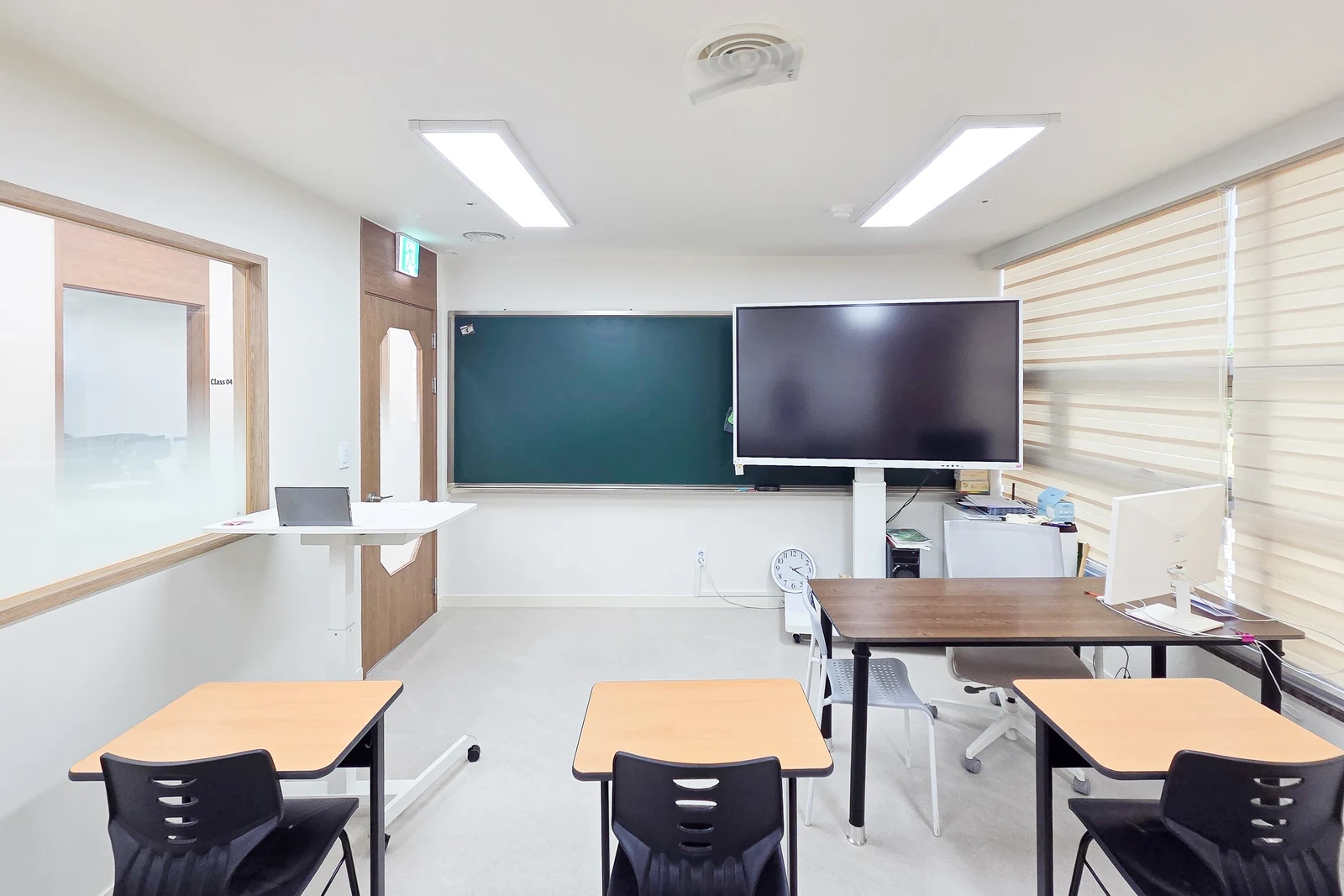
The classroom photograph shows a green board and a large monitor covering part of its right side. Ordering a board based only on its width can leave less usable space than expected. Decide where the screen will sit, then sketch how lesson content will fit on the remaining board.
If problems appear on screen while solutions remain on the board, both need to be visible together. If a video is followed by board teaching, consider how the screen will be moved or screened afterward. Separating content that must remain visible throughout the lesson from brief displays helps compare options without overloading the wall with equipment.
Go beyond drawing the board and screen outlines: write a typical problem and solution at the actual writing size. Mark space for formulas or homework notices that must remain visible. Compare a central screen, a side screen, and separate board and screen walls using the same teaching material. The photographed layout is not the right answer for every classroom.
Do not set mounting height solely by the visually pleasing center of a wall. Mark the instructor's usual writing range alongside seated students' viewing range. Check whether the monitor stand or instructor's desk obscures the board's lower edge. Rather than applying the same height to rooms with different students and equipment, test a representative classroom and use the findings elsewhere.
Where will the instructor stand and operate equipment?
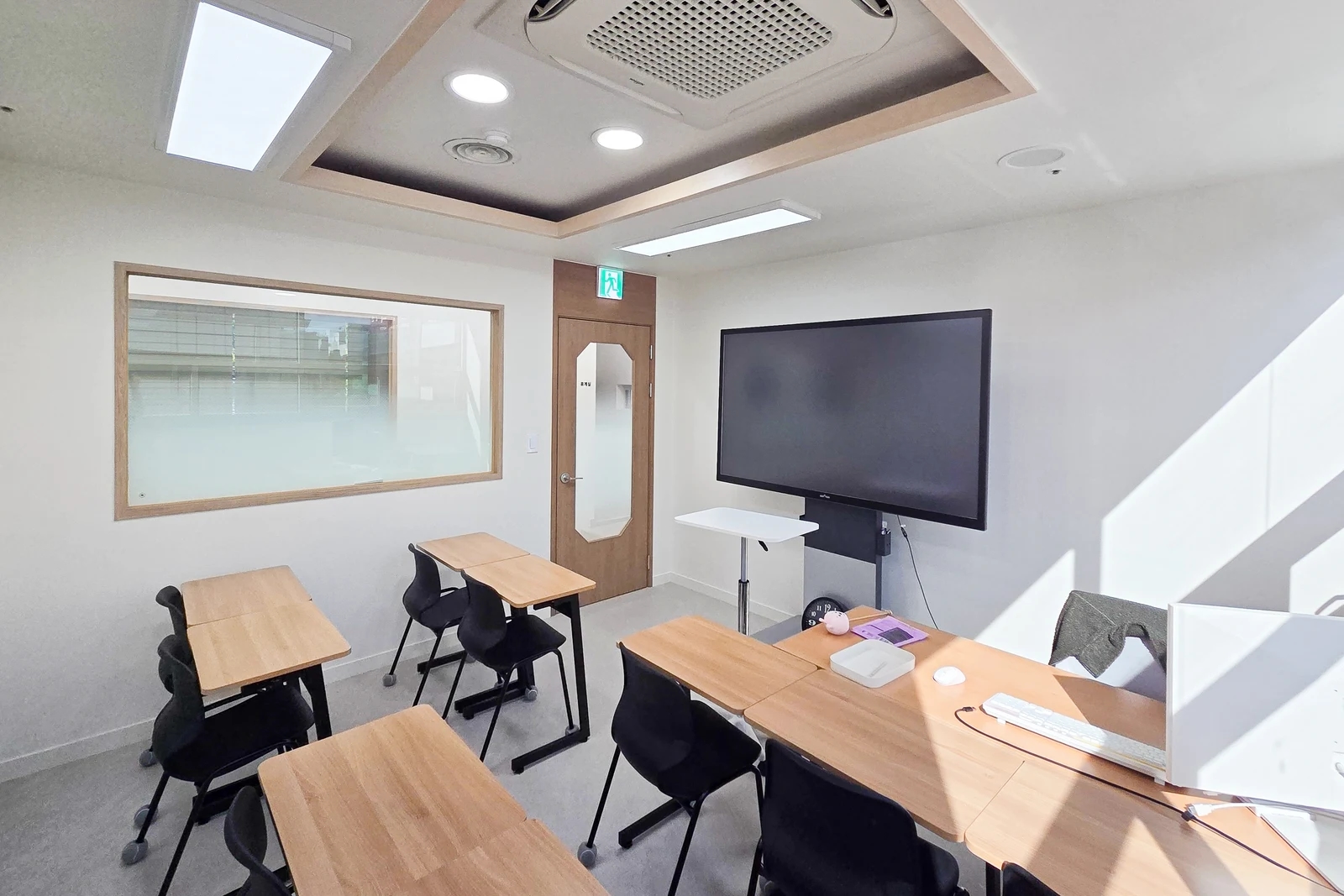
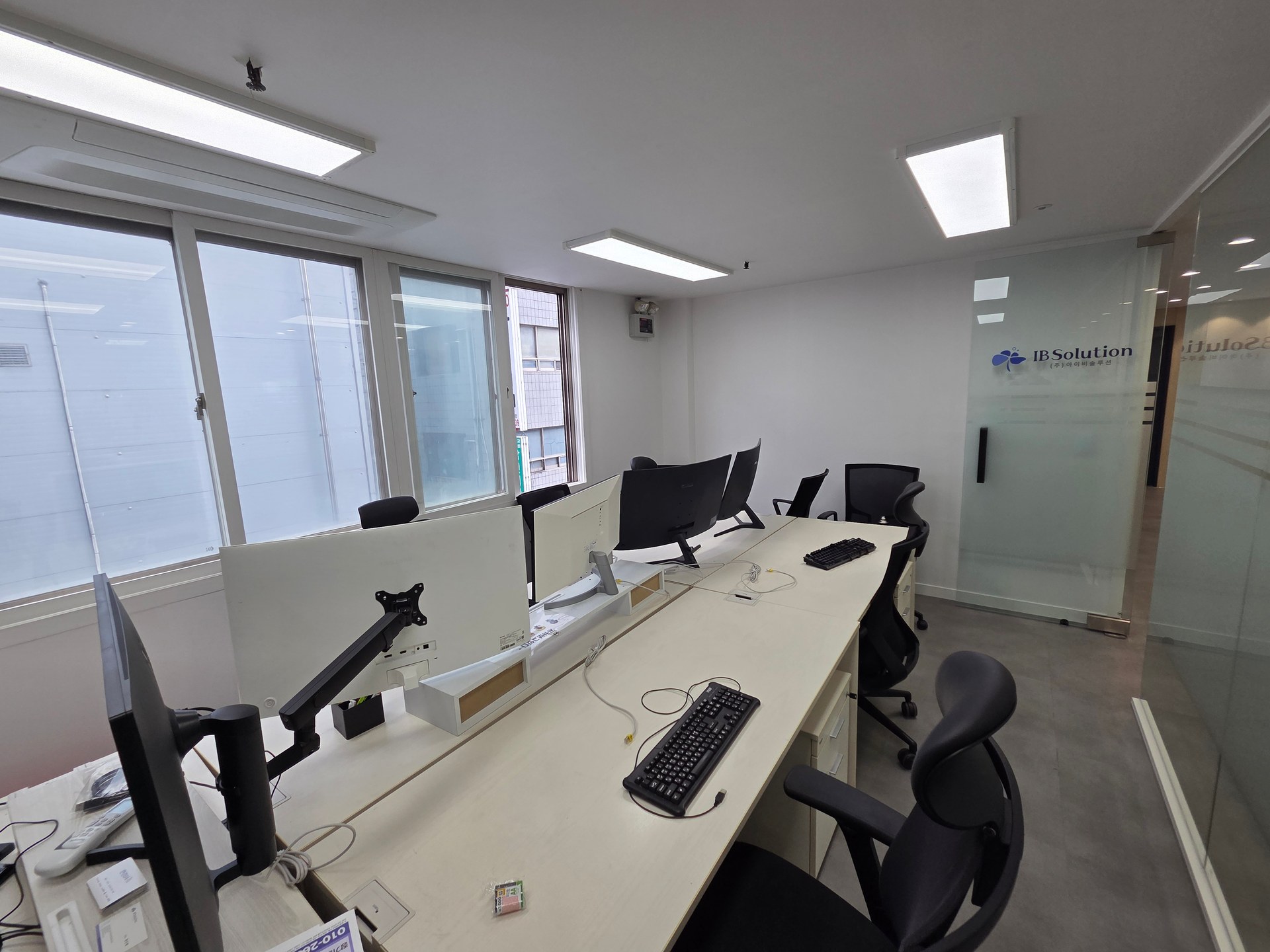
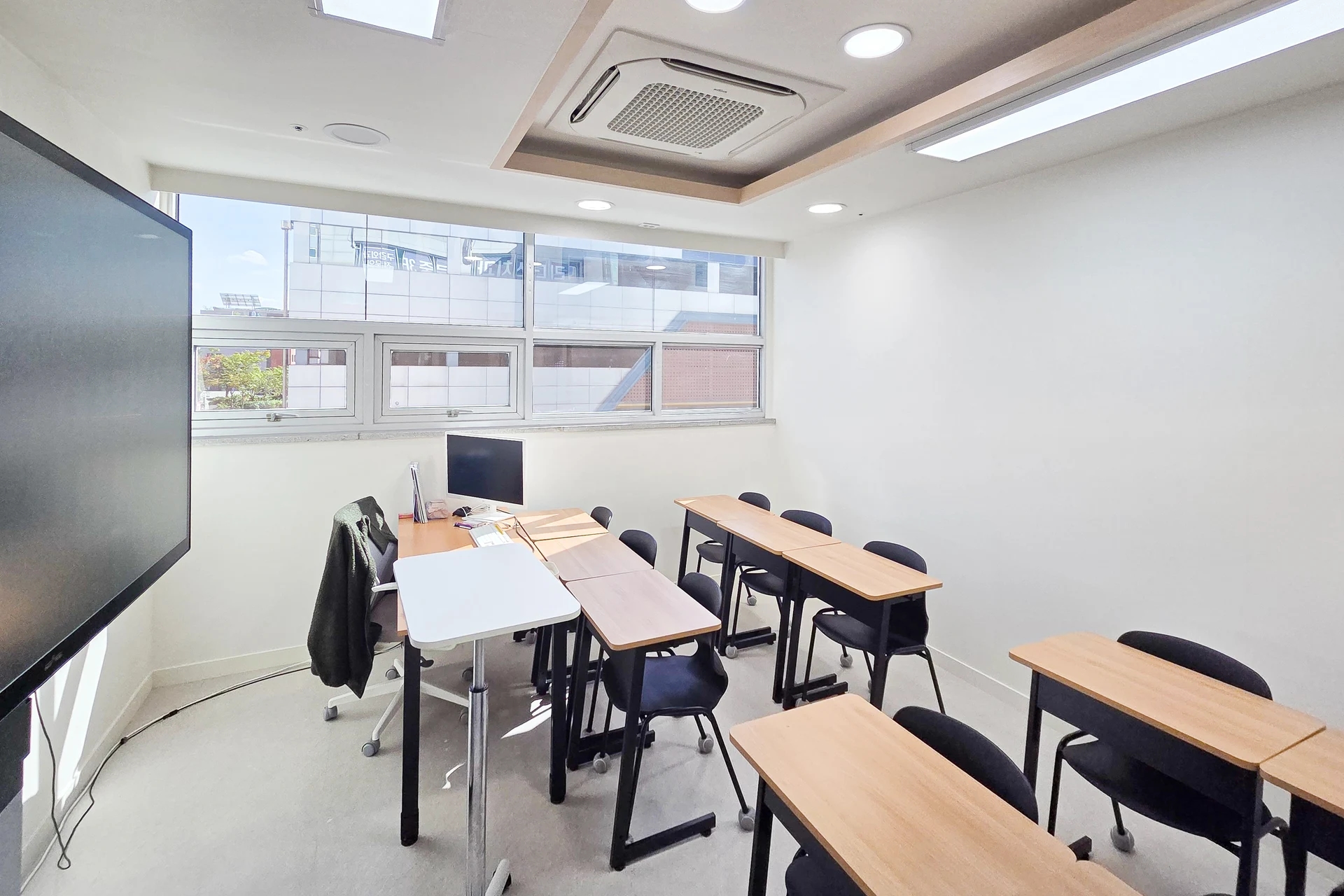
The small classroom photograph shows a white auxiliary table in front of the screen and a computer desk. Even with the same screen size, the front working area changes depending on where the instructor stands and operates the computer. Mark separate places for the laptop, open teaching materials, and board writing on the layout.
Whether the instructor advances slides from a connected laptop or directly on the screen changes which equipment must be within reach. Test opening files, turning pages, and continuing with board writing on the actual device. Wireless connectivity and touch functions cannot be confirmed from a photograph, so check the product model and support separately. A large screen does not necessarily have interactive-board functions.
Check which parts of the screen the instructor's body or computer monitor blocks from students' seats. Compare explaining beside the board with operating materials while seated at the desk. If front space is tight, consider moving the auxiliary table or storing infrequently used items elsewhere as well as reducing desk size.
Do not represent a mobile stand only by the screen rectangle on the plan. Include its base, wheels, and rear cables in the actual footprint. If it will move during lessons, check that it can reach the intended position without hitting chairs or doors. Confirm mounting and movement conditions with the responsible installer using the equipment and stand instructions.
Construction scope to settle before ordering the board
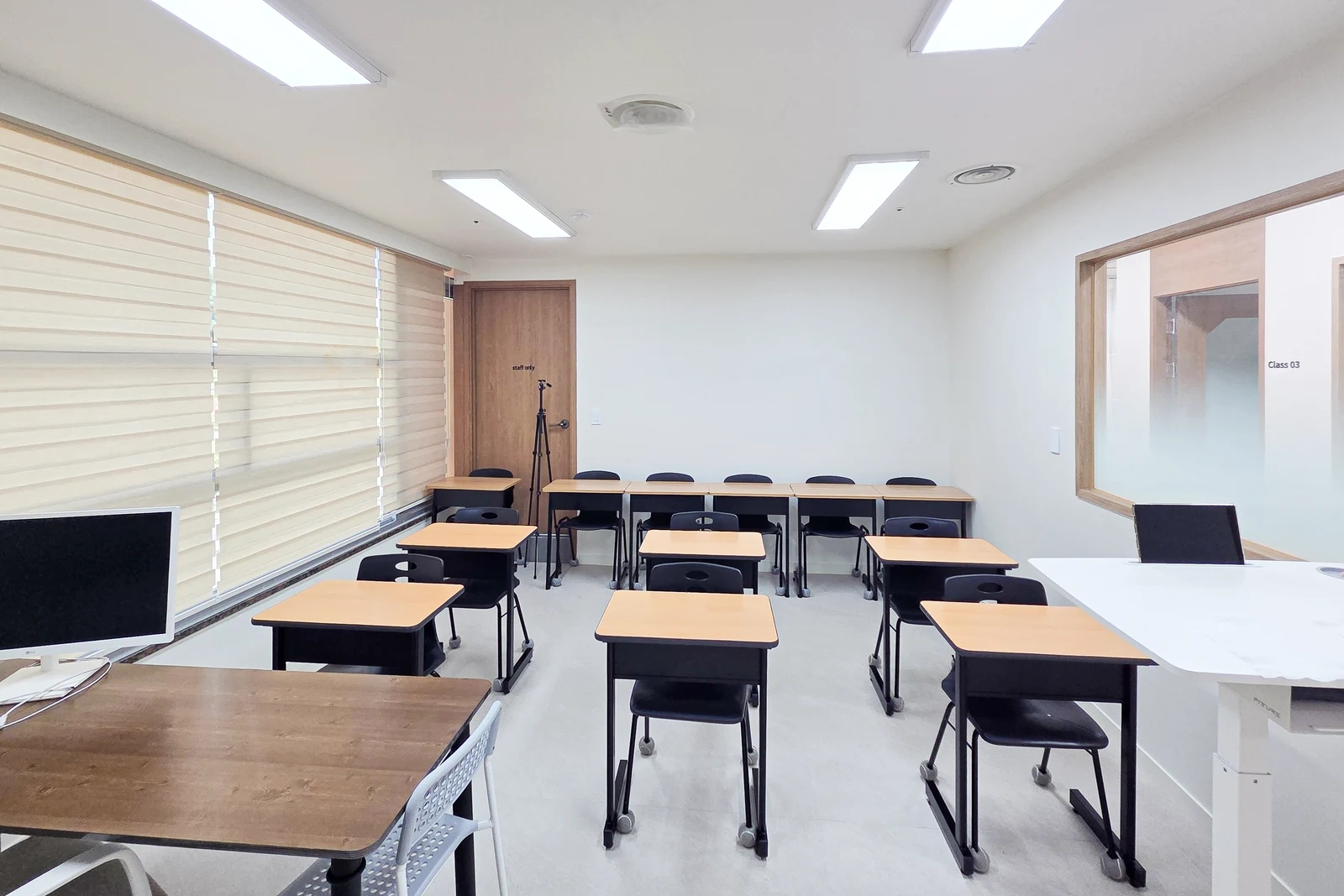
From the instructor's position, the photograph shows desks, windows, and doors together. Rather than considering only the board wall, stand at the front and check seats at both edges and the back. Assess screen views with the existing desk layout and the directions the instructor turns while explaining. This checks the front space remaining after equipment arrives.
For wall mounting, give the installer details of the board, screen, and brackets together. Completion photographs cannot establish concealed wall conditions or mounting suitability. Discuss whether to retain or rebuild the wall and what inspection or reinforcement installation requires, then record that scope in the quote. A particular wall material alone does not establish suitability.
Cabling does not end behind the screen. Draw routes from power and video connections to the computer or laptop position. Check whether desks must move to connect cables, whether plugs and connectors are accessible, and how cables will be managed during movement. Treat visible photograph cables as a prompt to check routes used by people and furniture during actual lessons, rather than as a recommended installation method.
Separate board supply and installation, screen stands, cabling, and wall-finish reinstatement in the quote. When bringing existing equipment, record who handles removal, transport, and reinstallation. Compare a new screen and an existing screen using the same construction scope. If the budget requires staged installation, distinguish equipment needed now from later replacements and decide which future cable routes to allow for now.
Finally, rehearse board writing, screen changes, and questions using a representative lesson. Record adjustments separately for board position, the instructor's desk, and screen settings. Photographs cannot establish seating capacity or learning outcomes, but this process can reduce blocked writing space and equipment-related interruptions before installation.
Ask us about your interior project
We can discuss a quote and design suited to the space you are planning.
Request a free consultation